Configuring Microsoft Outlook 2002/XP
This document describes how to configure Microsoft
Outlook 2002/XP to receive mail from your @nevcal.com account.
You can open Microsoft Outlook
on your computer by going to Start -> Programs
-> Microsoft Outlook.
Once in Microsoft Outlook, from the Tools
menu, select E-mail Accounts. Then select the radio
button marked Add a new e-mail account and click Next.
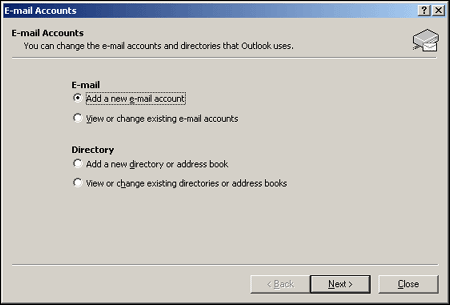
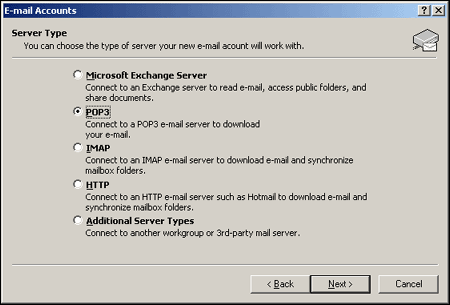
Select the radio
button marked POP3
and click Next.
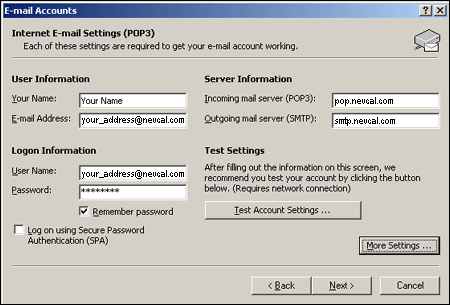
In the User
Information fields, enter your name and your e-mail address
as you would like others to see them (possibly mixed uppercase and
lowercase letters).
In the Server Information fields, enter pop.nevcal.com as the Incoming
mail server and smtp.nevcal.com
as the Outgoing mail server.
In the Logon Information fields, enter your e-mail
address all in
lowercase letters as the User Name and
your password as the Password. Then click More
Settings.
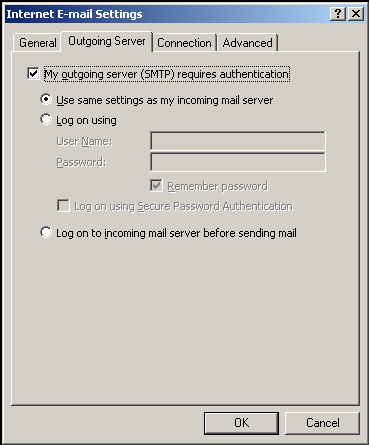
Click on the Outgoing
Server
tab and check the box labeled My outgoing server (SMTP)
requires authentication.
Then select the radio button marked Use same settings as my
incoming mail server.
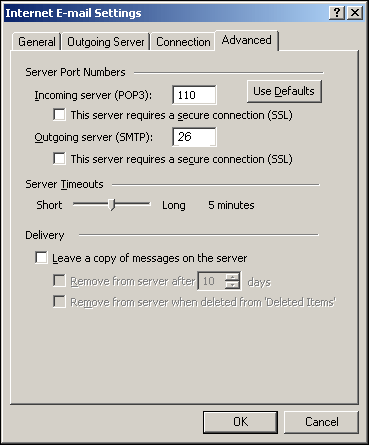
Click on the Advanced
tab and
verify that the Incoming server (POP3) is set to 110 and the Outgoing
sever (SMTP) is set to 26.
Then click OK.
Microsoft Outlook
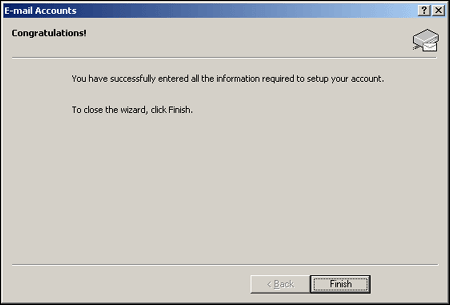
has now been configured for your account! Click Finish; then click on the Inbox
icon in the left navigation menu of Microsoft Outlook to see the inbox
of the e-mail account you have just set up.
Testing Your Account
Send yourself a message (or have a friend send you a message) from
another e-mail
address to make sure that you are properly set up to receive mail.
Click on the Send/Receive button to receive your
incoming e-mail.
Next, send a message using Outlook to another e-mail address to
make sure that you can send mail.
If you do not receive an error message when you receive or send mail,
your Microsoft Outlook is configured correctly.